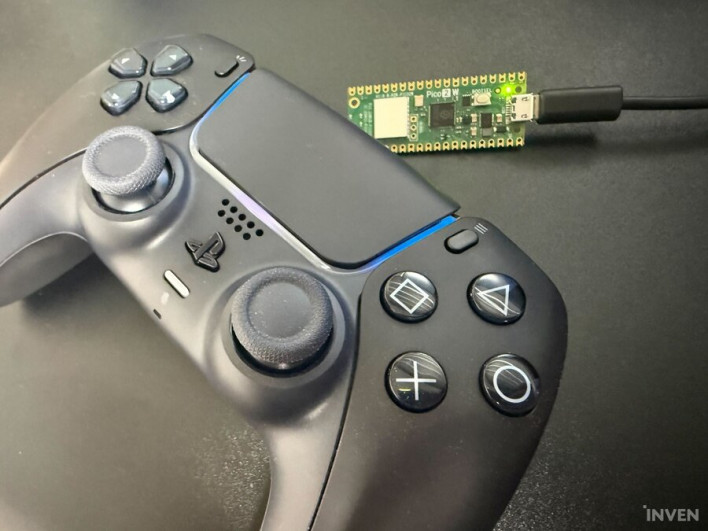
What is the best controller for you? Some might think of the Xbox controller, which has become the de facto standard for gamepads today, while others might point to the Nintendo 64 controller for introducing the analog stick. Or perhaps you remember the Wii Remote and Nunchuk as the best, thanks to the unique control experience provided by motion sensing.
Personally, if I had to choose the best controller, it would undoubtedly be the PS5 DualSense. The biggest reason is that it fundamentally changes the gaming experience. Haptic feedback delivers much more precise tactile sensations that are distinct from traditional vibration, and adaptive triggers boost immersion by adjusting tension based on the situation. We also cannot overlook the built-in speaker. Depending on the game, radio chatter or parry sound effects are played through the DualSense speaker, naturally narrowing the distance between the game and the player.
Of course, not every game makes active use of these DualSense features. They are often fully supported in PS5 first-party or equivalent second-party titles, but in many third-party games, it is hard to feel much of a difference from a standard controller. There was also the platform issue: the PC environment.
On the PS5, you can use all features fully with just a wireless connection, but on PC, you had to use a wired connection to properly utilize the DualSense's capabilities. With a wireless connection, major features like haptic feedback were often restricted or limited to simple vibration, which was disappointing.
However, those days of disappointment may be over. A method has recently been revealed that uses a Raspberry Pi to connect the DualSense wirelessly while perfectly enabling haptic feedback, adaptive triggers, and even the DualSense speaker. I decided to test it out myself to see how it performs in practice.
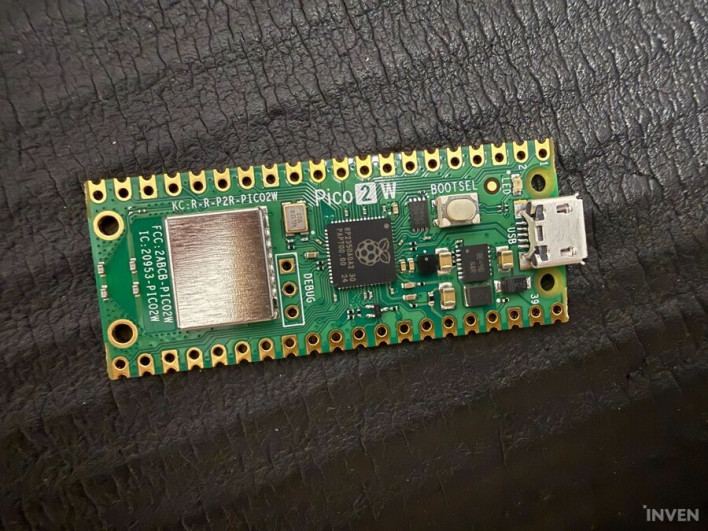
First, you need to buy a Raspberry Pi Pico 2 W. It must be the Pico 2 W, not the Pico 2 or anything similar. You need to convert this into a DualSense wireless receiver, or dongle. Don't worry about the word 'convert'—there is no soldering required. You just need to drop in a single file, and you're done. Note that you will need a USB Micro-B (5-pin) cable, not a USB-C cable.
Once you have the Raspberry Pi Pico 2 W, the rest of the installation is simple. DS5Dongle You can find everything from installation files to the official guide on the GitHub page, but you don't really need to check everything individually, so I will explain it all at once.
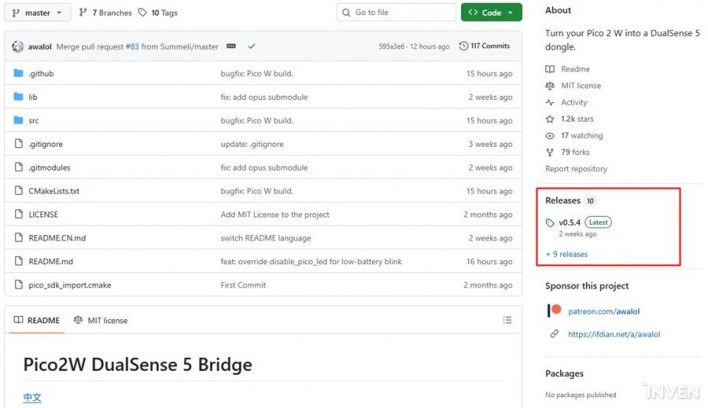

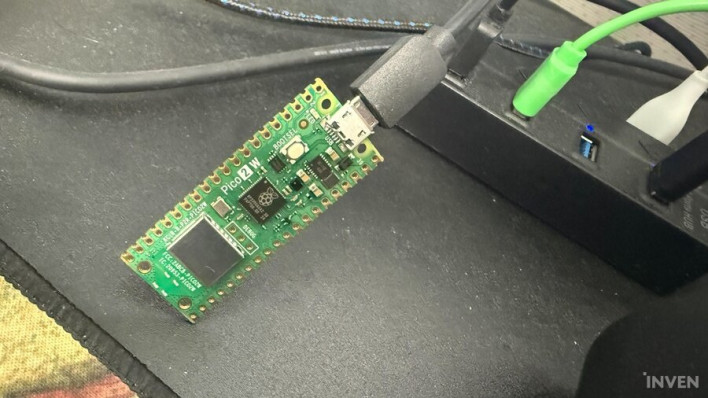

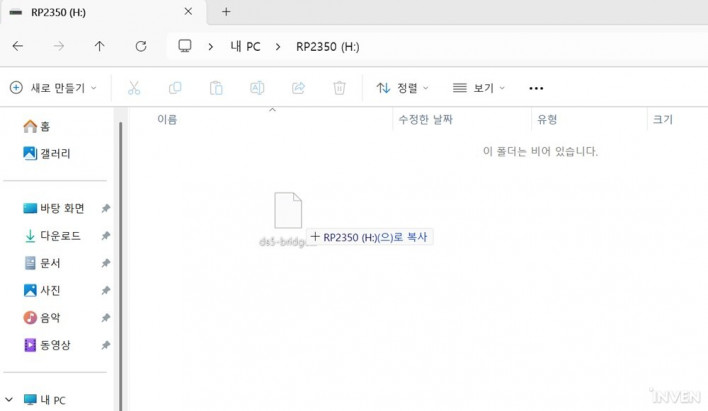
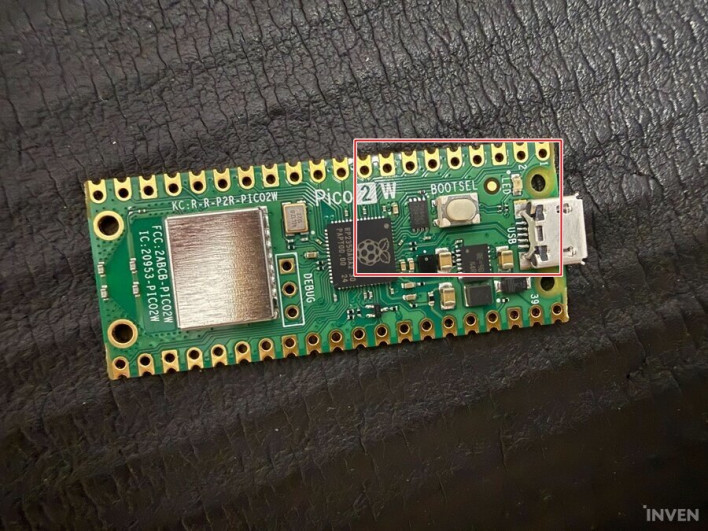
When you drop in the .uf2 file, the Pico 2 W will restart automatically and will no longer be recognized as a storage drive. It has effectively been converted into a dongle. You might wonder what to do when a new version comes out and you need to update it; don't worry. Just disconnect it from the PC, hold down the BOOTSEL button on the Pico 2 W, and reconnect it to the PC. It will be recognized as a storage drive again.
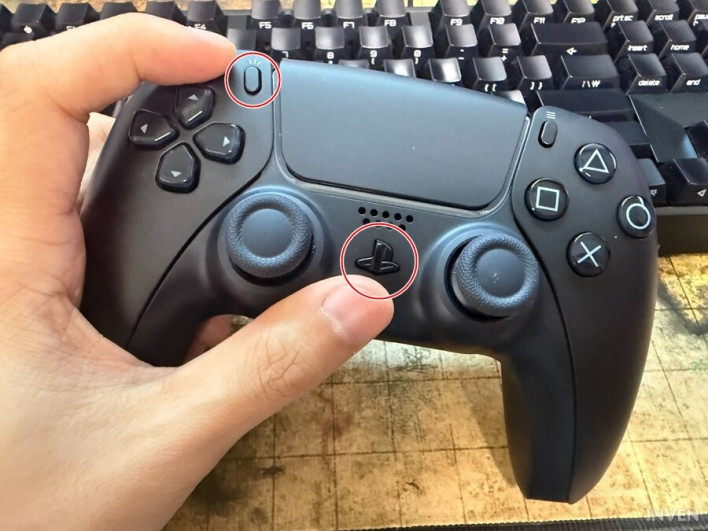
Once you've turned the Pico 2 W into a dongle, all that's left is to pair it with your DualSense. Hold down the Create button (top left) and the PS button on the DualSense until the light flashes; this means it has entered pairing mode. At this point, bring it close to the Pico 2 W, and it will automatically detect and connect. If it doesn't work, unplug the Pico 2 W, reconnect it to the PC, and try holding the controller close again.
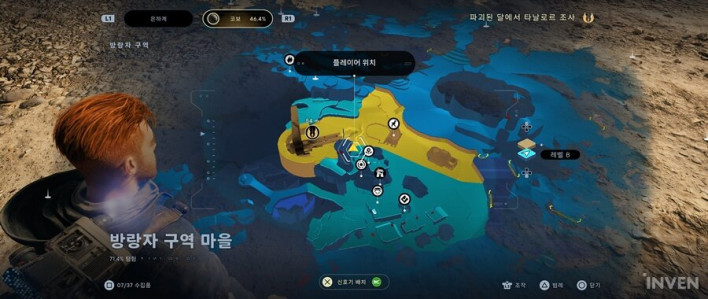

Now it's time to check if the DualSense is properly connected and if its features are working correctly. For the test, I used two games: 'Stellar Blade' and 'Star Wars Jedi: Survivor.' Both were chosen because they fully utilize haptic feedback, adaptive triggers, and the DualSense speaker.


As 'Stellar Blade' was a PS5 timed exclusive, it makes perfect use of all DualSense features. While I wouldn't say one feature is better than another, the sound coming through the DualSense speaker during parries really boosted the tactile satisfaction and immersion. I confirmed that this works perfectly in wireless mode as well.
The video below was recorded with in-game music turned off, so you can hear the parry sound playing through the DualSense speaker.
Thanks to the Pico 2 W, the biggest hurdle to enjoying games on PC with a DualSense—the 'wired connection' constraint—can be considered effectively gone. Of course, it's not without its downsides. As mentioned at the beginning, games that actively utilize DualSense features are still mostly first-party titles. Nevertheless, there are definitely third-party games like 'Cyberpunk 2077' and 'Star Wars Jedi: Survivor' that make full use of the DualSense's unique characteristics.
The DualSense elevates gaming immersion with various features unlike any other controller. Now that it's free from the constraints of a wire, why not try enjoying that experience wirelessly on your PC.