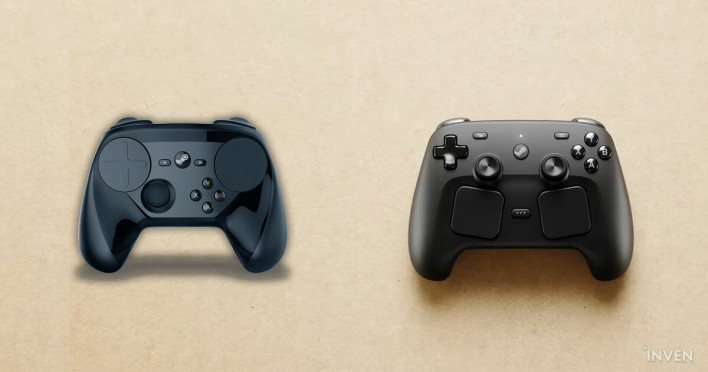
With the foundation laid solid, the question of "where on earth can this pad be used?" has disappeared. This means that even without the two trackpads, the build quality is comparable to other pads in terms of the standard gamepad's overall size.
Not only the basic controls, but the overall appearance of the device also resembles gamepads that game fans are already familiar with. Due to the trackpad area, I was apprehensive about how massive it would look in photos, but its actual size is comparable to those of other companies. It is certainly not on the small side, but it is not so large that playing is impossible either. The weight is also around 290g, which is slightly heavier than the DualSense. However, considering the button configuration of the Steam Controller, high-end controllers will be the point of comparison, and it is clearly lighter than the DualSense Edge or Xbox Elite Series 2, which exceed 300g. Furthermore, it is not just that it is not big or heavy; it is also notable for being implemented quite cleverly, naturally pushing the direction of control outwards. The Steam Controller features a symmetric layout with two analog sticks positioned below the D-pad and standard buttons, rather than the asymmetric layout found in Xbox pads or Nintendo Switch Joy-Cons and Pro Controllers, which place the analog sticks and D-pad in a straight line along the thumb line. ▲ The analog sticks are designed in a symmetrical shape; while everyone may have their own preferred layout, this is definitely the right fit for the Steam Controller. Whether the PS DualShock/DualSense style symmetrical layout is more comfortable or the Xbox pad style asymmetrical layout is more comfortable depends on individual play experience and how accustomed one is to the controls. However, the story changes if there is a large trackpad between the grip sections. Since the analog sticks protrude higher than the D-pad and are positioned directly above the trackpad, there is less chance of covering the trackpad with your palm when pressing them. Even when pressing the D-pad or regular buttons, the area beneath your thumb naturally sits higher than the analog sticks or positioned further outward. If that sounds a bit complicated, simply put, this symmetrical shape means that the trackpad is least likely to be accidentally pressed during other operations. The device's appearance and button placement are also linked to the grip feel. And this is reasonably decent. I rated it as "reasonably" because, while it is certainly good considering the unique device shape and functionality, it inevitably feels lacking compared to other high-end pads that strive for the highest level of grip. Part of the reason is that this was unavoidable in order to include features unique to the Steam Controller. Personally, since my hands are on the smaller side—small enough that a Switch Pro Controller 2 fits perfectly—even a Steam Controller that isn't exactly large can definitely feel big to me. However, once you actually hold it, it feels quite snug in your hand. This is thanks to the fact that the bottom grip is designed to descend nearly vertically rather than protruding outwards. Additionally, the recessed area is quite generous, giving the feeling of a relatively tight grip. When you first touch it, you get the impression that the controls, especially the analog sticks, are far away from the grip. The reason that feeling diminishes while playing seems to be that you become accustomed to the structure of holding the pad relatively loosely through this grip design. Of course, since the trackpad area is large, gameplay where you grip the pad tightly is impossible. Instead, due to the characteristics of modern pads that require you to extend your index and middle fingers far for bumpers and triggers, you are forced to hold the grip lightly. Therefore, concerns that the grip would inevitably suffer significantly due to the trackpad were not strongly felt during actual gameplay. The materials and overall build quality have also improved. In particular, the finish, which previously felt slightly off or crude and toy-like, has now been faithfully implemented as a high-end gamepad. ▲ The grip section extending downwards maintains stability by catching on the hand even when extending the thumb far. While the physical button press and recoil will be discussed separately below, it is disappointing that the material does not feel like it firmly adheres to the hand. Of course, the current material itself gives a more premium feel than before, and choosing a high-friction material for the entire pad could be disadvantageous in situations where the hand needs to lift slightly to switch between the trackpad, analog sticks, and regular buttons. Still, a slight sense of regret remains, wondering if it wouldn't have been possible to achieve a level of proper texture processing like the DualSense. This standardization of materials can also be interpreted as a process intended to highlight the functional characteristics mentioned earlier. This is the Grip Sense, one of the most special features you can experience with this Steam Controller. Controls that change just by gripping Potential created by Grip Sense, Gyro, and Trackpad Grip Sense is, quite literally, a function that detects whether the grip area is being held by hand. Leveraging the strength of the Steam platform, this enables quite diverse and interesting controls. First of all, Grip Sense only recognizes the state when the grip area is being 'grabbed' to some extent. It is not limited to merely touching with a finger or gripping the pad here and there. It recognizes the part where the player is actually holding the controller. And the most intuitive way to utilize this is through gyro controls. Gyro controls are motion sensor functions that detect the pad's up, down, left, right, forward, backward, and rotation based on multiple axes, leading to actual control. Typically, this gyro sensor is used in shooters where rapid aiming point movement is possible using only the analog stick, or conversely, when precise movement is required. While it is effective in the areas where it is commonly used, several problems arise from the fact that the pad itself is used for control. ▲ The action of gripping this part can be recognized as a button. The gyro is customized so that it only operates when the grip is being held. The gyro recognizes even briefly putting the controller down, changing posture, or even slightly moving the controller for other operations. With the Steam Controller, the gyro does not activate when you release your grip. There is no need to press a separate button to turn the gyro on or off. Naturally, since the gyro can be activated simply by gripping or ungrip, the speed of control increases accordingly. It is also effective for rotational gameplay, such as continuously turning the screen to the right. Previously, to continuously raise the camera angle to the right, you had to keep moving the controller to the right. Unless you are playing standing up, and even if you are standing and need to keep your eyes on the screen, continuously moving the controller is virtually impossible. However, now you can simply move the controller a certain distance, briefly release your hand, and bring the controller back to the center of your body. It essentially means that the task of briefly lifting the mouse and bringing it back to the center can now be performed using the gyroscope. Actually, I mentioned that "the gyroscope does not work if you release your hand from the pad," but to be precise, that is only half true. For this to be possible, the gyroscope must be configured to operate only when a specific button is being pressed. In other words, the grip recognition acts as a kind of button. Naturally, you can make it recognize a grip held on only one side, or you can turn the grip itself into a button that performs a completely different function. If used as a mouse click button, it is possible to fire a gun simply by gripping and releasing it, or to perform fine mouse operations in conjunction with the gyroscope. The analog stick can also recognize touch and be used as a button. It is possible to assign a separate function not only to a firm press of the analog stick—commonly the R3 or L3 functions—but also to a very light touch. Since Steam allows for such free mapping, the possibility of creating endless new control methods has opened up as long as you have an idea. ▲ The trackpad does not necessarily have to be used as a substitute for a joystick or mouse. Clicks, touches, and up, down, left, and right directions can all be mapped as buttons. And this diversity of controls becomes even more colorful with the trackpad, which serves as another control unit. The Steam Controller's trackpad feels like it has been completely transplanted from the Steam Deck. When the power is off, there is no distinct feedback, but when it is on, it provides a slight vibration and the sensation of directly touching the trackpad. Naturally, the click sensation is also conveyed through this vibration. It adds the feeling of actually pressing a button; if you have played Steam Deck, it is identical to that experience. If not, think of the Force Touch system on a MacBook or iPad Magic Keyboard, and it is similar. As was the case with Steam Deck, this trackpad serves as a substitute for mouse controls, and it is much more fluid than expected. While the technical changes themselves are not significant, the placement of two trackpads that fit the hand perfectly has made mouse-like control much more flexible. Although movement distance is limited with a single trackpad, operating both trackpads in succession with both thumbs allows you to move the pointer over long distances without stopping. These trackpad operations can be controlled in great detail within the Steam app, just like other analog sticks or button inputs. Personally, during this experience, I found that assigning left-click input solely to the left trackpad and manipulating the mouse pointer with the trackpad—much like controlling an analog stick with the right hand—allowed for much more fluid control, though not quite as much as a mouse. It is a difference significant enough that, much like using a vertical mouse or a laptop trackpad, you can play games more freely after a certain adaptation period. Additionally, the trackpad is positioned in a recessed area slightly below the standard analog stick and is slightly tilted, unlike the Steam Deck. Since the grip naturally leans inward, this angle actually allowed for more natural trackpad manipulation. Furthermore, both sides of the trackpad now offer control connectivity directly above the analog stick. In games like first-person shooters, utilizing both simultaneously enables precise aiming. The idea is to increase the sensitivity of the analog stick to manipulate the screen quickly, and then lower the sensitivity on the trackpad by slightly lowering your finger. To ensure this synergy of operation, the symmetric layout—which allows the analog stick to be positioned over each trackpad instead of an asymmetric one—played a significant role. Furthermore, when combined with the gyro function and Grip Sense, screen manipulation itself becomes freer and more flexible than any other controller. ▲ By placing the analog stick over the trackpad, interference with other buttons is reduced, and continuous operation is made more flexible. There is also an option to use the trackpad not just as a stick or a single button, but by pressing in multiple directions to split it into multiple buttons. Steam comes with built-in features that allow you to add different tasks to a single button, input buttons in sequence, and even change button layouts depending on the situation. Essentially, with just a little ingenuity, you can execute countless operations using only the Steam Controller. The overall vibration intensity felt a bit lacking. Instead, much like the trackpad's vibration, the device's overall vibration focuses on providing feedback that an operation is taking place, offering a stronger sense of immersion in precise control responses. From Pucks to Customization, True to Steam, Infinite Possibilities, and Just as Much to Learn The Steam Controller also paid considerable attention to connectivity with the device. The recommended combination is the Puck. The Puck connects to the device via USB-C and attaches to the back of the Steam Controller using Pogo pins. It has a slight magnetic field, so the connection is strong enough that it won't detach even if you just lift the cable connected to the Puck, unless you shake it vigorously. Additionally, when you first connect the Puck to a Steam Controller, it automatically syncs with the device. Once a device is connected via the Puck, it will automatically connect wirelessly to that device without needing to be connected via the Puck again, provided the Puck is already connected to the device. In other words, it functions as both a device connection app and a receiver. You can connect up to four Steam Controllers to a single Puck, so even if you use multiple controllers, you can register them all with just one. Thanks to the puck, the initial controller setup is designed so that it can be used immediately in just a few steps on Steam, without the need for Bluetooth connections or complex tasks within the app. ▲ The puck, which attaches to the Steam Controller magnetically, ▲ guarantees easy connection and a strong signal for the Steam Controller. In addition to connecting the device, the puck also serves as a charger. Since the device is connected via a cable and the small puck attaches to the controller, it can be used while charging. Since the puck is small and not heavy enough to secure the cable, the cable inevitably ends up spreading out relatively messily compared to a cradle-style controller. Game control is possible even with the puck connected. Of course, charging is possible by connecting a standard cable to the Steam Controller's USB-C port instead of using the puck. Since this puck connection is established via the Steam app, it worked identically on the Mac version of the Steam app as well as the Windows version. Bluetooth connection is also possible; in this case, various options and device settings can be accessed through the Steam app just as they are when connected via the puck. Two connections can be saved per device, allowing you to set up one for the puck and one for Bluetooth and use them on different devices. Unlike the convenient connection, switching between the puck and Bluetooth is a bit cumbersome. If you turn on the power while holding down the right trigger and the A or B button, the puck and Bluetooth connect to different versions depending on the button pressed. Instead, there aren't many device switching options, and the method is clear, making it more flexible than console controllers. A greater disappointment, however, is the remaining lack of customization features in the Steam app. Unlike other high-end controllers such as the DualSense Edge and Xbox Elite Wireless Controller, which allow for modifications to modules or sticks, the Steam Controller has focused on enhancing the finish of the device itself. The customization features a wide range of buttons and input methods, created from generous backgrip buttons and two trackpads that enhance control versatility, all made possible in a form that can be directly manipulated within the Steam app. ▲ Free and in-depth customization is an advantage, but achieving a setup that fits your hand perfectly requires considerable effort. However, the customization features in the Steam app remain complex. This is partly due to the sheer variety of functions available. Options ranging from stick sensitivity and dead zone settings to action functions and macros already exist, and it even supports button changes that allow these to be utilized in combinations with mouse or keyboard buttons. Although this has been significantly revamped compared to the 2015 Steam Controller version, it still feels unintuitive and has a configuration that appears to have been created separately and added together. While it possesses more powerful customization features than any other pad, this also means it is difficult to optimize. Because of this, it seems likely that users will wait for community-created settings rather than creating their own controller configurations to suit their tastes, just as they did with Steam Deck. I spent quite a bit of time optimizing some controller settings during this experience, to the point where I don't dare recreate them every time I play a new game. Except for a few games I plan to play for a long time, I think I will likely enjoy the game again by downloading community settings and modifying only a few features. Additionally, in games that automatically switch between keyboard and mouse controls when using a mouse and controller controls when using a pad, there are parts where simultaneous mouse and pad control is not possible. In games like Baldur's Gate 3, the keyboard and mouse UI and the controller UI are different, and this switches automatically depending on the input device. Even if you configure the trackpad to use as a mouse and attempt to use them simultaneously, the keyboard and mouse UI is displayed for mouse input, while the controller UI is displayed for gamepad input, making normal gameplay impossible. Of course, if you match all the Steam Controller button mappings to keyboard keys, it is possible to use it with both a mouse and a gamepad. While this is an issue that game developers need to resolve, it is also disappointing that the Steam Controller's feature of being able to use a mouse and gamepad simultaneously cannot be fully utilized. ▲ In games that only support either keyboard/mouse or gamepad, the UI switches erratically, making simultaneous play difficult. Valve is aware of this and is mentioning it to developers, but this may depend on whether game companies provide official layouts for the Steam Controller. However, if Valve provides support for major games, it would be helpful in understanding the controller's functions and possibilities. Providing free games like 'Aperture Desk Jobs,' which was offered to explain the features of the Steam Deck, could also be helpful. In fact, Valve has stated that it plans to provide tutorials, example templates, and user guides, including those for the trackpad. Furthermore, they announced that they are continuously communicating the benefits of mixed input—simultaneous mouse and pad operation—to developers. Given that Valve is aware of the aforementioned UI issues, such as those seen in Baldur's Gate 3, and is discussing them with developers, it appears that changes may occur in more games in the future. The Steam Controller shares the same name as the 2015 Steam Controller and shares a similar objective of providing controls that allow users to play all games on Steam. However, the process is different. The experience learned from previous failures and the Steam Deck, combined with the shift in perception regarding game controls resulting from providing more open accessibility across various devices, has transformed the Steam Controller from a mere Steam-exclusive control device capable of mouse operation into a true game controller. Thanks to this, it has become a device well worth purchasing, at least for those intending to use it on Steam. And this transformation will play a crucial role as the device that users interact with first. Steam is also preparing for the release of the Steam Machine, which aims to re-enter the living room alongside the Steam Controller, and the Steam Frame, which envisions expanding the VR experience. Of course, due to various external factors, it appears that the release timing will not coincide with that of the Steam Controller. However, if these two devices combine strategic performance and price as previously revealed, the Steam Controller that controls them will inevitably become the core of the Steam system, going beyond mere game control. Valve's expansion strategy for Steam is effectively starting with the Steam Controller. The Steam Controller is scheduled to go on sale for $99 on May 4th, local time. It is scheduled to be sold at Komodo Station through Komodo, which also provides Steam Deck sales services in the Asian region. Detailed pricing and information are also expected to be revealed soon.

Sort by:
Comments :0