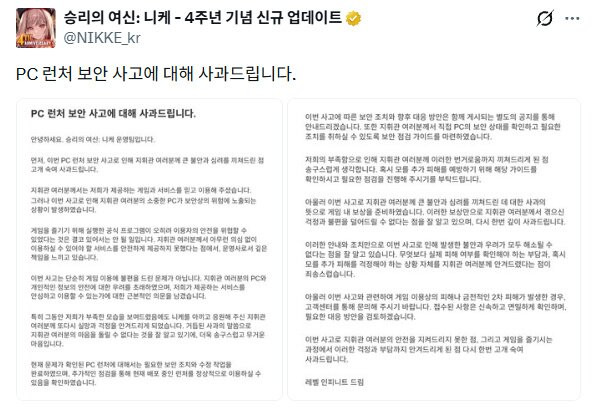
On November 5, Level Infinite officially apologized for the security incident involving the tampering of 'Goddess of Victory: NIKKE' PC launcher files and the distribution of malware, revealing a detailed timeline of events and a security check guide.
In an official apology statement, the 'Goddess of Victory: NIKKE' operations team stated, "It should never happen that an official program executed to enjoy the game could instead threaten the security of our players." They added, "We feel deep responsibility as a publisher for failing to safely provide a service that players should be able to use without hesitation."
They continued, "Beyond simply causing inconvenience in playing the game, this incident has raised concerns about the security of players' PCs and personal information, leaving fundamental doubts about whether our service can be used with confidence." They added, "We deeply apologize for placing the burden on you to check for actual damage and forcing you to worry about secondary harm."
According to the released investigation findings, the incident began on September 27 at 10:59 AM, when a domain (insightjs.com) used for certain game services was hijacked by a third party. Between 3:41 PM and 3:42 PM on the same day, four official CDN script files downloaded by the launcher were tampered with. Starting from October 30 at 3:52 AM, malicious programs were distributed to users' PCs through these modified scripts. Level Infinite detected the anomaly at around 12:00 AM on November 4, replaced three of the files with normal files by 2:23 AM (first response measure), and completed the CDN cache refresh for the remaining file by 12:09 PM on the same day (second response measure). The mobile version was not affected by this incident.
Level Infinite urged all users who ran the Windows PC launcher at least once after 3:41 PM on September 27 to conduct a security check. First, starting at 8:00 AM on November 5, a feature was implemented to automatically detect and remove malware when running the official PC client, while a separate manual check and removal guide was provided for players wishing to check manually without running the launcher.
Additionally, while preparing in-game compensation to express their apologies, Level Infinite plans to receive and process reports through their official Customer Support center if secondary damage—such as gameplay disruption, compromised external service accounts, or financial losses—has occurred as a result of this incident. To prevent recurrence, the company plans to implement improvements such as strengthening the security monitoring system, establishing an integrity verification system for launcher external resources, and applying minimum permissions per launcher feature.
Below are the manual security check instructions for the Nikke PC launcher announced by the operations team.
Hello, Commanders. This is the GODDESS OF VICTORY: NIKKE Operations Team.
We sincerely apologize for the great concern and distress caused to all Commanders by the recent PC launcher security incident.
If you have launched the Windows PC launcher at least once since September 27 at 15:41, we ask that you perform a security check and take any necessary measures.
You can complete the security check and necessary actions more conveniently using the security feature (ACE) provided through the official PC client.
For instructions on how to use this feature, please check the [PC Launcher Security Incident and Follow-up Measures] announcement.
If you do not currently have the PC launcher installed or wish to perform a security check without using the launcher, please refer to the instructions below to proceed with the security check.
This security incident was limited to the PC launcher and did not affect the mobile version of the game.
Therefore, Commanders who have only used the mobile version do not need to take any separate security measures related to this incident.
1. Preparations Before Starting the Security Check
Before starting the security check, please disconnect your network and completely close the NIKKE game, the launcher, and the Google Chrome browser.
Please also check the system tray in the bottom-right corner of your PC screen to make sure no NIKKE icon remains.
We recommend that you do not relaunch the NIKKE PC launcher until the security check is complete.
2. Security Check
① Locate the Launcher Log File
Right-click the NIKKE icon on your desktop and select [Open file location] to open the NIKKE launcher installation folder.
In the installation folder, check the file at the path below.
└ Launcher\intl_service\debug.log
└ Example: C:\NIKKE\Launcher\intl_service\debug.log
└ Example: C:\NIKKE_GOOGLE\Launcher\intl_service\debug.log
② Check the Log Contents
1) Right-click the debug.log file and select [Open with] → [Notepad] to open the file.
2) Press Ctrl + F to search for the string below.
└ k2f_chan registered
If this string is found, there is a possibility that a malicious program was executed on your PC.
Please follow the instructions below to remove the malicious program.
Even if the string is not found, security risks cannot be completely ruled out.
We recommend updating your antivirus software to the latest version and performing a full scan.
3. Removal of Identified Malicious Program
The procedures below include modifying files and the registry.
Please make sure to verify the specified paths and items before proceeding, and take care not to delete any other items.
① Delete Abnormal Registry Entry
1) Press Win + R, enter regedit, and select [OK].
2) Paste the path below into the address bar at the top of Registry Editor and press Enter.
└ HKEY_CURRENT_USER\Software\Classes\CLSID
3) Check for the entry with the name below in the path above.
└ {E77CC89B-7401-4C04-8CED-149DB35ADD04}
4) If the entry exists, right-click it and select [Delete].
Entries with the same name may exist in other paths, so please ensure you delete only the registry entry in the path specified above.
② Reboot PC
After deleting the registry entry, reboot Windows.
③ Delete Abnormal DLL File
1) After rebooting the PC, press Win + R, paste the path below, and press Enter.
└ %LOCALAPPDATA%\Google\Chrome\User Data\
2) In that path, check if there is a subfolder that satisfies both conditions below.
- Inside the PlatformExperienceHelper folder, there is a subfolder whose name consists solely of 64 hexadecimal characters (digits 0–9 and lowercase English letters a–f).
- Inside that subfolder, there is a platform_experience_helper.dll file.
3) Delete the subfolder with the 64-character name only if all of the above conditions are met.
Precautions
- The PlatformExperienceHelper folder may contain normal Chrome files, so please take care not to delete the entire folder.
- If the PlatformExperienceHelper folder does not exist in the above path, the abnormal DLL file is not installed, so proceed to the next step.
④ Delete Abnormal Downloaded File
1) Open the folder at the path below in the NIKKE launcher installation folder.
└ Launcher\log\tinyget
2) Check if there is a file with a file size of 205,135 bytes (approx. 200 KB) and a file name similar to the format below.
└ tinyget.<date>-<time>.log
3) Delete any file matching the above conditions. If no such file exists, proceed to the next step.
⑤ Delete Launcher Local Cache
1) Press Win + R, paste the path below, and press Enter.
└ %APPDATA%\nikke_launcher
2) Delete the entire tbs_cache folder in that path.
4. Account Security Check
We recommend taking the account protection measures below on another device unaffected by malware, or after completing the security check on your current PC.
① Please change the passwords for any accounts that have been logged into or used on the affected PC.
② If API keys or access tokens were used or stored on the affected PC, please revoke the existing keys and tokens and regenerate new ones.
5. System Security Scan
Please update Windows Security or another trusted antivirus program to the latest version and run the scans below.
- Antivirus software full scan
- Windows Security offline scan (Microsoft Defender)
If abnormal issues persist after completing all of the above measures, please contact Customer Support.
We once again sincerely apologize for burdening Commanders with the hassle of conducting manual security checks themselves.
Level Infinite Team