Wuthering Waves is more demanding than it looks, making it difficult to maintain 120 FPS even on high-end PCs. Because of this, rather than insisting on max settings, it is necessary to adjust your options for a smoother experience.
Excluding obvious factors like resolution, I will break down how different options affect visuals and performance, and what you should tweak to boost your frame rate.

1. NVIDIA DLSS + Super Resolution & Frame Generation (Frame Impact ★★★)
I explained this feature in my previous post. It uses AI to upscale images rendered at lower resolutions by the graphics card, allowing for sharper graphics with a lower load, thereby increasing frame rates. If you set Super Resolution to DLAA, it skips upscaling and uses AI correction solely to boost frames. Generally, moving from Quality to Balanced to Performance lowers the initial resolution and increases the intensity of the upscaling.
Naturally, lower base resolutions lead to significantly higher frame rates, but because the AI is essentially 'guessing' and filling in the details during post-processing, you may encounter distracting issues like image smearing or blur. Therefore, if you have a powerful PC, I recommend using DLAA for Super Resolution; if your specs are lower, I suggest sticking to Quality or at least Balanced.
Frame Generation uses this same AI technology to insert additional frames between existing ones, making the motion appear smoother. If you have a modern RTX 50-series graphics card, you can go beyond 2x up to 4x. While this can drastically improve frame rates, it can also increase input lag and ghosting, so adjust it to a level that feels right for you.
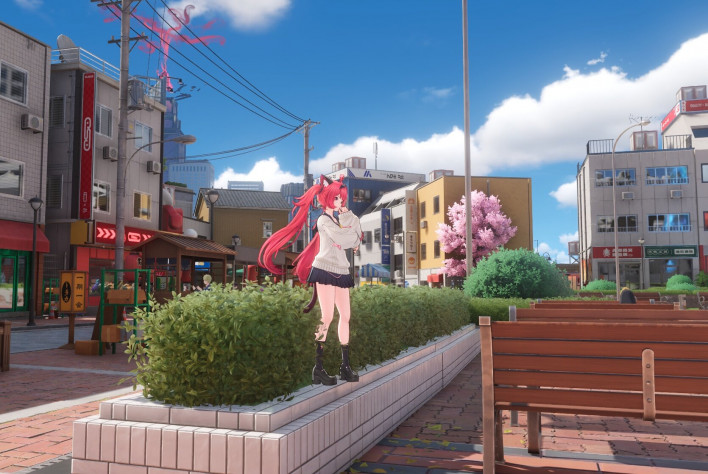
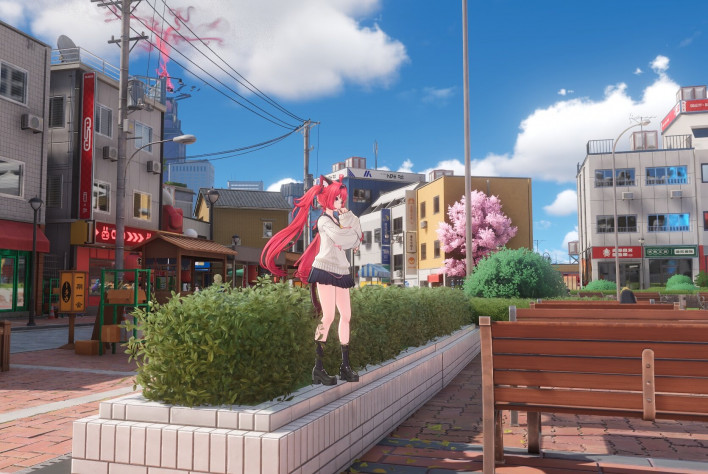
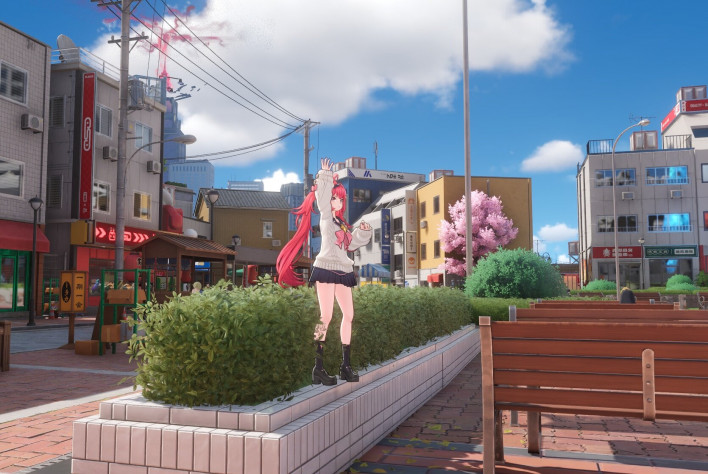
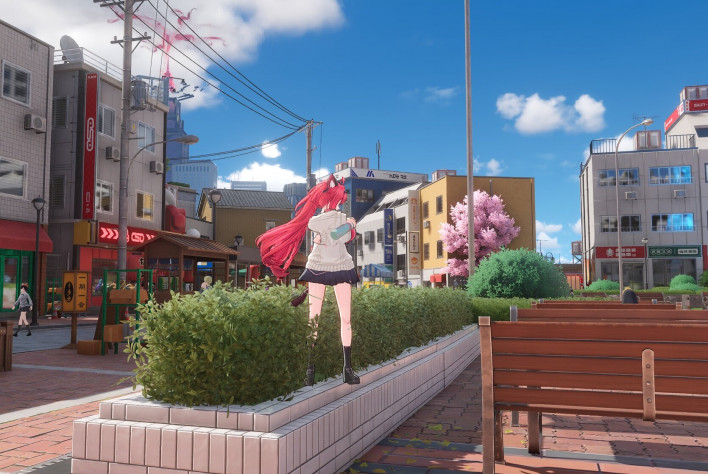
The downsides of DLSS are more noticeable in motion than in static images, so it is hard to see the difference in still screenshots, but I have attached some for comparison. Note that when using DLSS, the Anti-Aliasing and Rendering Precision settings at the bottom are automatically disabled.
2. Rendering Precision (Frame Impact ★★★)
This option determines how 'hard' the game works on 3D rendering, and you can see the frame rate change step-by-step. Setting it too low can make the screen look blurry or muddy, while higher values increase sharpness.
Since there is almost no frame rate difference between 0.6, 0.8, and 1.0, I recommend keeping it at the default of 1.0. If you are willing to sacrifice some frames for sharper graphics, you can increase it. However, beyond 1.0, the frame rate drops significantly with each step; at the maximum setting of 1.6, your frame rate will be cut in half compared to 1.0, making smooth gameplay difficult.


3. Anti-Aliasing (Frame Impact ★)
Anti-Aliasing is a technique that reduces jagged edges in 3D graphics, smoothing out the boundaries of objects. If you turn this off, lines on characters, buildings, and power lines will look jagged, which significantly impacts visual satisfaction.
Without getting into complex technical details, the bottom line is that the AA techniques used in Wuthering Waves don't impact frame rates much while effectively reducing jagged edges, so it is best to keep them on. FAA is the lightest, but if you want better results and don't mind a heavier load, you can use SMAA. Personally, I think FAA is sufficient these days since DLAA and resolution settings cover most of the work. However, opinions on screen smearing vary with different AA techniques, so try switching between them to see what you prefer.


4. Global Illumination Mode + Reflection Mode (Frame Impact ★★★★)
To summarize this simply: it is a lighting technique that calculates not just the primary light source, but also how light reflects off objects. In the past, games only rendered light traveling in a straight line from a source like the sun or a ceiling lamp. As technology advanced, we began simulating how that light hits and reflects off other objects, allowing for more natural lighting.
Setting aside the technical jargon, 'Lumen' is the lighting technology supported by the latest Unreal Engine, while SSR is a previous-generation technology. Lumen produces much brighter and more impressive graphics, but it is very demanding. The difference between turning off Global Illumination with SSR reflections and using Lumen mode is stark, so if you want more spectacular visuals, I recommend lowering other settings to keep Lumen mode on.
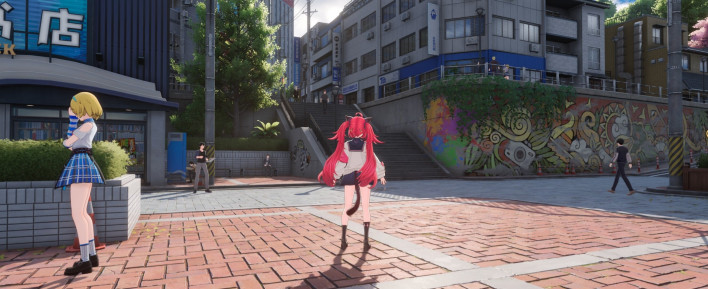
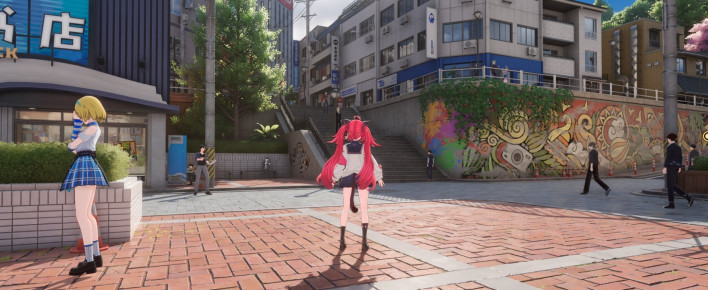
5. Ray Tracing (Frame Impact ★★★★★★★)
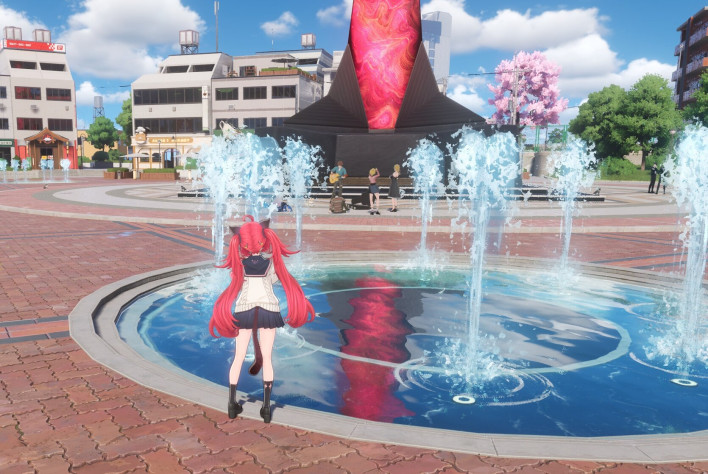
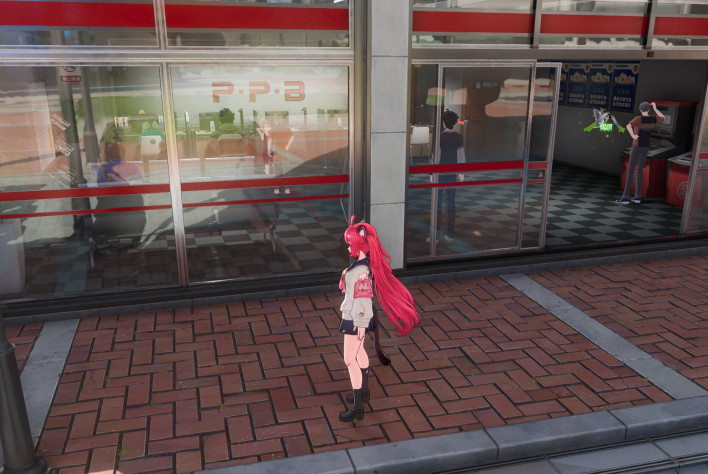
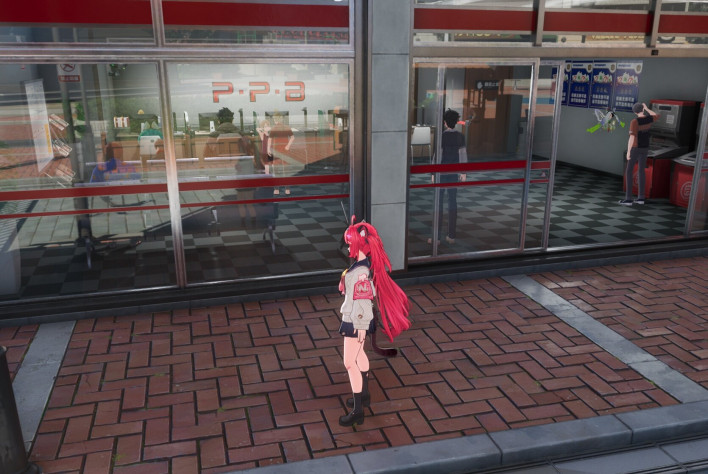
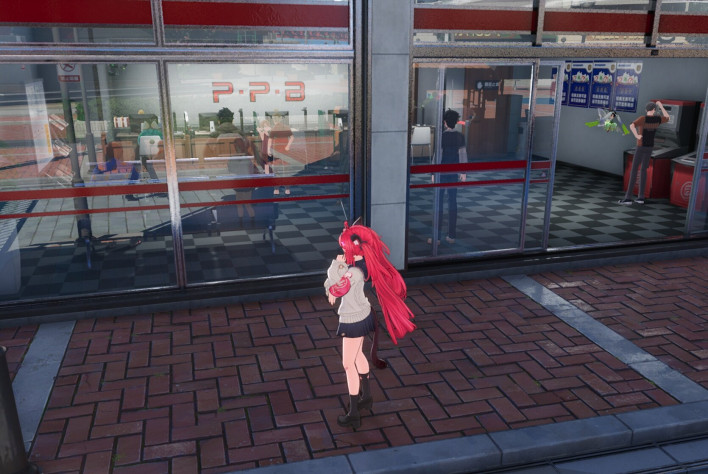
Ray Tracing goes beyond simple brightness to calculate how light reflects, creating hyper-realistic reflections. To put it bluntly, your frame rate will 'tank,' but you get to enjoy stunning graphics through various reflections.
There is a reason it is off by default. It can cut your frame rate in half or even to a third, so unless you have a top-tier, modern PC with plenty of performance to spare, I recommend keeping it off. Since this option changes the visuals significantly, I have attached comparison screenshots.
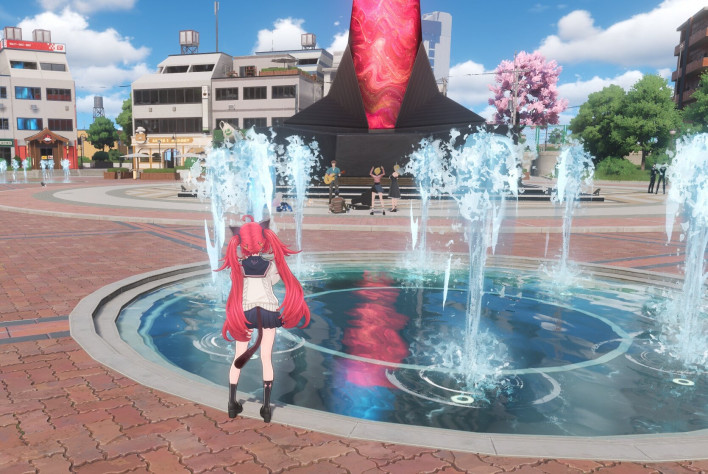
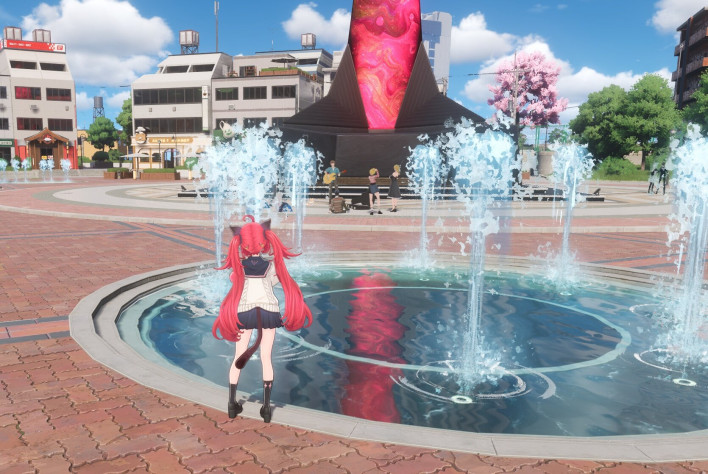
6. Other Settings (Frame Impact ★)
These items can be set from Very Low to Very High, but in Wuthering Waves, they don't seem to cause major frame rate changes. The areas they affect are listed below. These features have a negligible impact on frame rates compared to other options, so feel free to adjust them as you like.
Texture Mapping: Applying 2D images onto 3D models
Texture: Specifies the quality (density) of the textures (low impact on performance, but lowering it is very noticeable)
Foliage: Specifies the density of vegetation in the distance
View Distance: Specifies the maximum distance at which objects are rendered
Post-Processing Effects: Specifies the intensity of various post-processing effects
◆ Final Conclusion: Recommended Settings?
Wuthering Waves has high system requirements, so the best settings vary greatly depending on your PC. Especially recently, with the skyrocketing cost of components, many people are holding onto their old PCs, leading to a wide variety of hardware among gamers. Therefore, rather than telling you to follow one specific setup, I will tell you the order in which you should adjust your settings.
First, set the resolution according to your preference. This determines the visible size (in windowed mode), so it should be your top priority. Next, decide whether to use DLSS. I highly recommend keeping it on; if you don't have an RTX card and can't use it, you'll have to move to the next step.
For AA, I recommend TAA if possible, and regardless of your specs, I recommend a Rendering Precision of 1.0. Increasing this drops your frame rate too much. Afterward, try toggling Global Illumination and Reflections between 'Lumen+Lumen' and 'Off+SSR' to see which looks better while maintaining a playable frame rate.
Unless you have a super-high-end PC, I recommend using Ray Tracing only in limited situations—like when you're on a date with a partner or just relaxing and enjoying the night view—where a lower frame rate doesn't matter.

Sort by:
Comments :0