


Why Use Netmarble Connect?
Most modern games support cross-platform play between PC and mobile. However, running these games directly on a mobile device requires high specifications, often leading to issues like overheating and rapid battery drain.
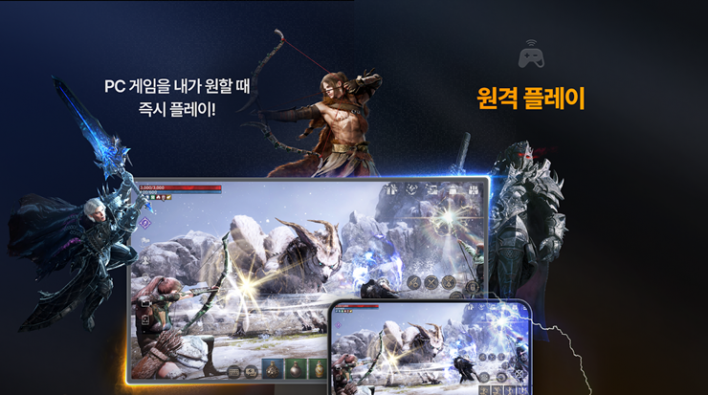
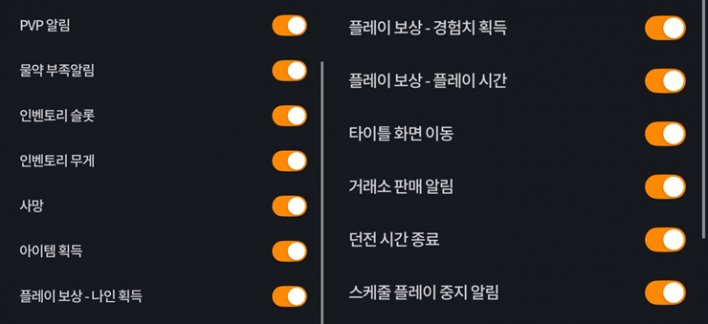
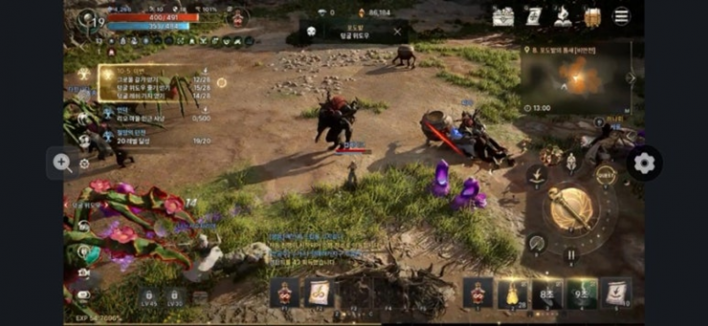
Netmarble Connect addresses these problems by allowing you to 'remotely play' PC games on your mobile device. The game runs on your PC, while your mobile device provides a relatively smooth environment to access various convenient features. You can remotely install and update games, receive character status notifications, and even play the game itself.
We recommend giving it a try; you can start using the service simply by installing the app, registering your device, and linking your account.
How to Use Netmarble Connect
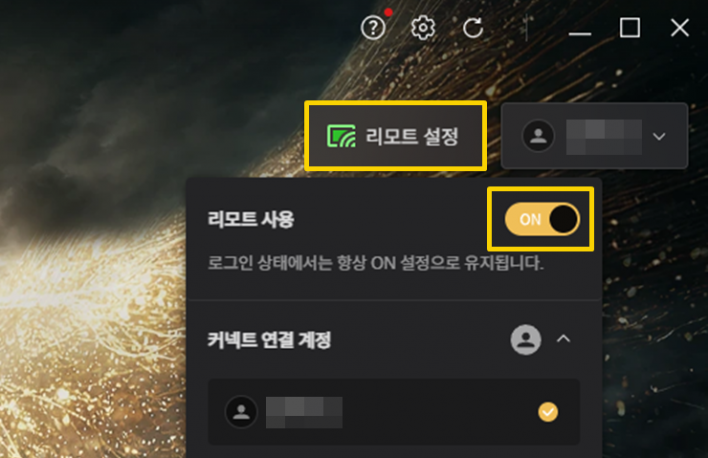
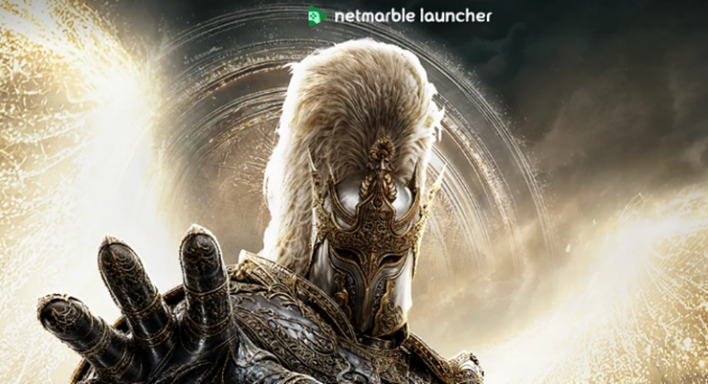
First, log in to the Netmarble Launcher, turn on 'Remote Settings' in the top right corner, and link your account. If you encounter an error while turning on Remote, please refer to the official troubleshooting guide. (▶ How to fix Remote ON errors)
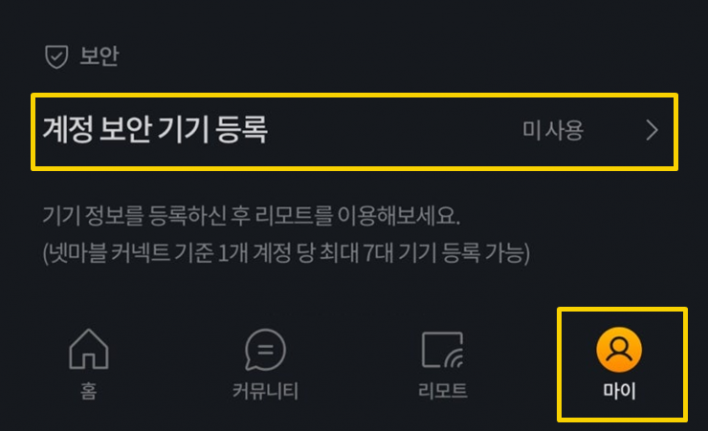
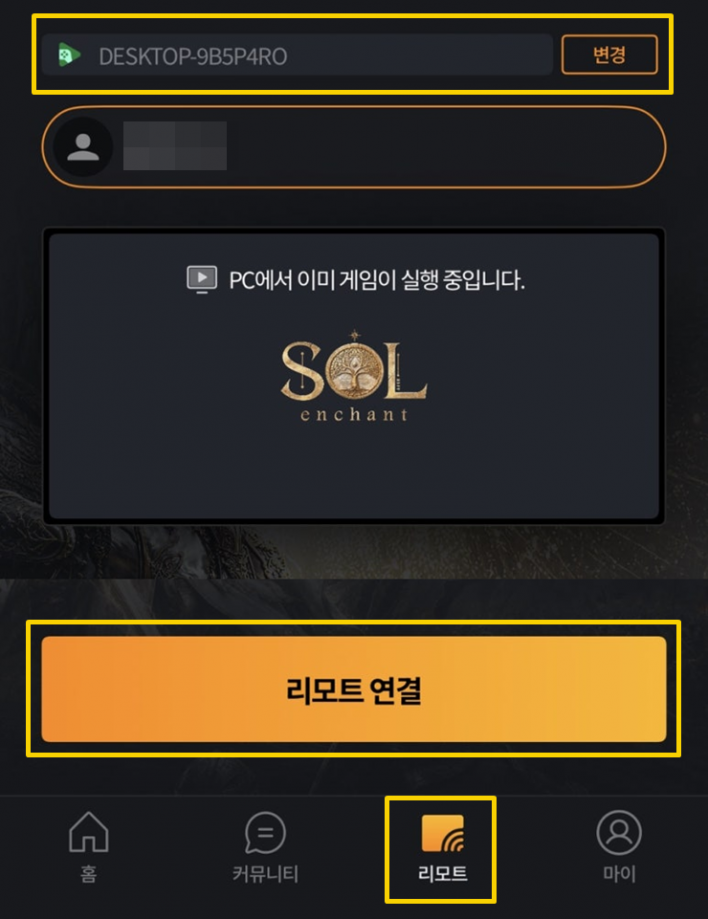
Next, download and launch 'Netmarble Connect' from your mobile app store. After logging in, go to the 'My' tab and complete 'Account Security Device Registration' to enable remote play. Then, go to the 'Remote' tab, select your game, and tap 'Connect' to set up your remote play environment. If you don't see Sol, click 'Change' at the top and switch it to Google Play.
If you have trouble connecting, try the following solutions. If you launch the game before the remote connection is established, it may fail, so close the game, restart it, and try connecting again. If that doesn't work, toggle the Remote setting OFF and then back ON. As a final step, completely close the Netmarble Launcher and restart it.
Precautions for Using Netmarble Connect
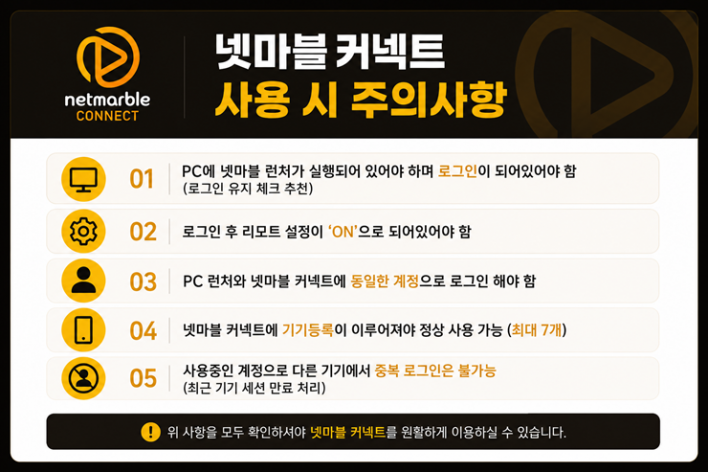
Please keep the following precautions in mind when using Netmarble Connect. To use remote play, the Netmarble Launcher must be running and logged in on your PC, and Remote settings must be turned ON. The accounts on the launcher and Netmarble Connect must match, and duplicate logins are not supported.
You must register your device before using remote play. Please note that you can register up to 7 devices.
![]()
- Juhun "Nirr" Lee
- Email : nirr@inven.co.kr




Sort by:
Comments :0